
Refurbed & Linnworks
Complete guide to setting up and configuring the Refurbed channel integration with Linnworks for order management, inventory synchronisation, price updates, listing management, and returns processing.


Orders, despatches, cancellations & refunds
Stock sync & price updates
Create, update & delete offers
Splitting, invoices, returns & more
📊 About the Integration
The Refurbed integration connects your Linnworks account with the Refurbed marketplace — a European online marketplace specialising in refurbished electronics, sports equipment, and kids' products. The integration communicates directly with the Refurbed REST API.
📦 Channel Integration Features
- Order download — automatically retrieves new orders from Refurbed and imports them into Linnworks. Items are auto-accepted on download.
- Order splitting — orders with multiple shipping profiles are automatically split into separate Linnworks orders.
- Despatch notifications — sends tracking information and courier details to Refurbed when an order is dispatched in Linnworks.
- Invoice upload — optionally generates an invoice PDF from a Linnworks template and uploads it to Refurbed during despatch.
- Serial number tracking — optionally sends item serial numbers to Refurbed during despatch.
- Cancellation handling — cancels order items on Refurbed when an order is cancelled in Linnworks.
- Refund processing — processes refunds for individual order items with automatic exchange rate handling.
- Inventory sync — sends stock quantity updates to Refurbed offers.
- Price updates — updates reference prices, minimum prices, and regional/market prices on Refurbed offers.
- Listing management — create, update, and delete offers (listings) on Refurbed directly from Linnworks.
- Returns processing — automatically creates and updates RMA bookings in Linnworks based on Refurbed return requests (background worker, runs every 15 minutes).
✅ Before You Begin
Make sure you have the following information ready before starting the installation.
| What you need | Where to get it |
|---|---|
| Refurbed API Access Token | Request from the Refurbed team |
| Linnworks account | An active Linnworks account with permissions to install channel integrations |
| Invoice template (optional) | If you want automatic invoice upload, prepare an invoice template in Linnworks beforehand |
🔗 Installation
Once you have your Refurbed API token, you will be provided with an installation link to add the integration to your Linnworks account.
- Open the installation link provided to you.
- Enter your Linnworks credentials (email and password) to authorise the installation.
- Select the latest version of the integration from the list.
- Click Install to add the integration to your account.
📦 Channel Integration
Connect Linnworks with Refurbed for order management, despatches, inventory synchronisation, price updates, listing management, and returns.
Under the Settings menu in the bottom right-hand corner navigation of Linnworks, navigate to Channel Integration.
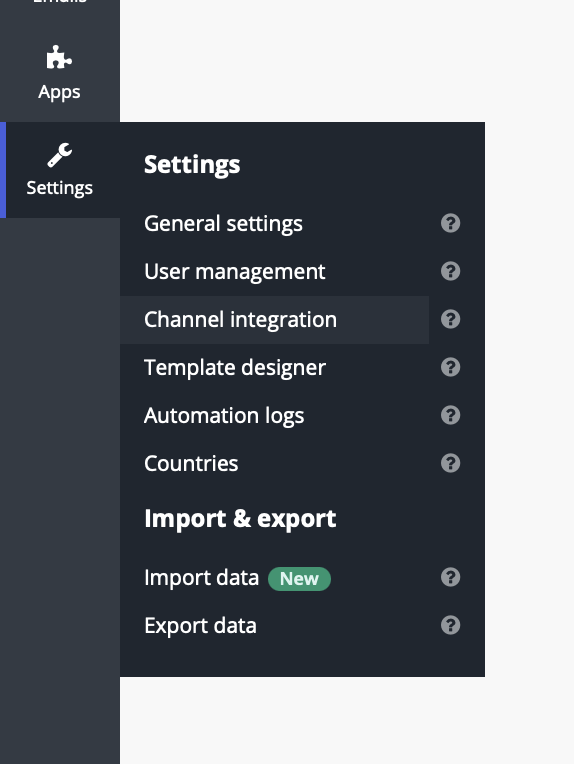 Linnworks navigation → Settings → Channel Integration
Click "Add New". Search for "Refurbed" in the list.
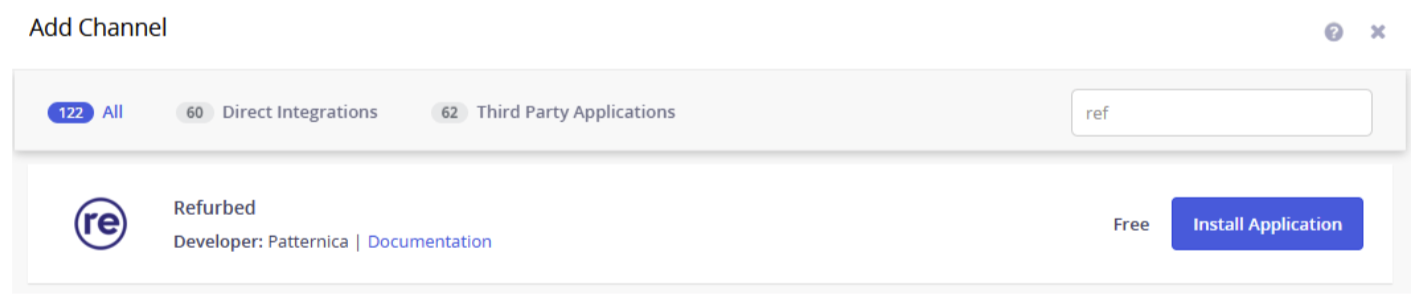 Add New channel integration with Refurbed shown in the list
When asked for an Account Name, name the connection as you see fit — for example Refurbed.
Please agree to the Linnworks terms and conditions and click Next.
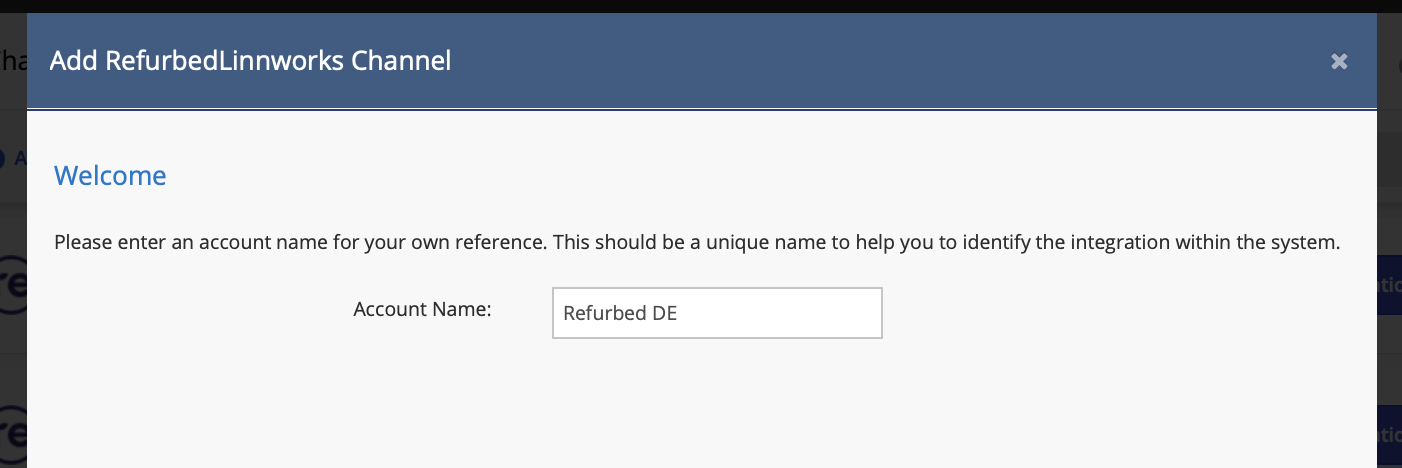 Account Name input with "Refurbed" entered
Enter your API Credentials:
| Setting | Description | |
|---|---|---|
| Access Token | Your Refurbed API access token. | Required |
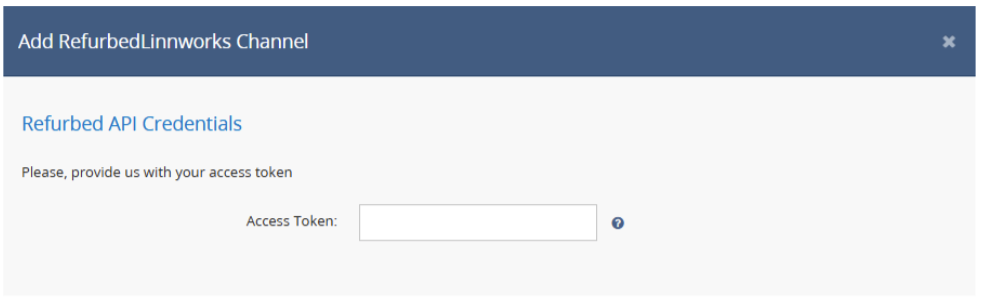 API Credentials step — API Token input field
Configure Order Import settings:
| Setting | Description | |
|---|---|---|
| Use Presentment Currency | When enabled, orders are imported into Linnworks using the presentment currency (the currency displayed to the customer). When disabled, the settlement currency (the currency you are paid in) is used. | Optional |
| Merge Address Fields | When enabled, the street name and house number from the Refurbed order are combined into a single Address 1 field in Linnworks. When disabled, the street name goes to Address 1 and the house number goes to Address 2. | Optional |
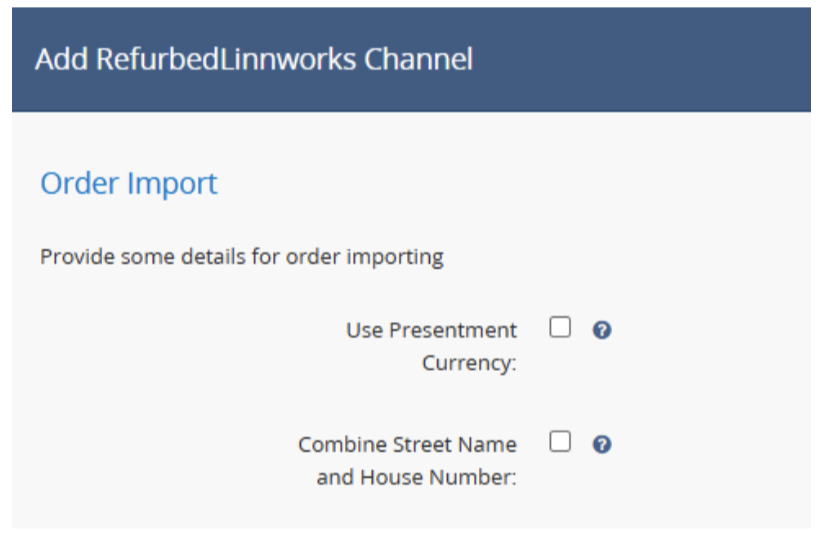 Order Import settings: Use Presentment Currency, Merge Address Fields
Configure Invoice Uploading:
| Setting | Description | |
|---|---|---|
| Generate Invoice | When enabled, the integration will automatically generate an invoice PDF from a Linnworks template and upload it to Refurbed during order despatch. | Optional |
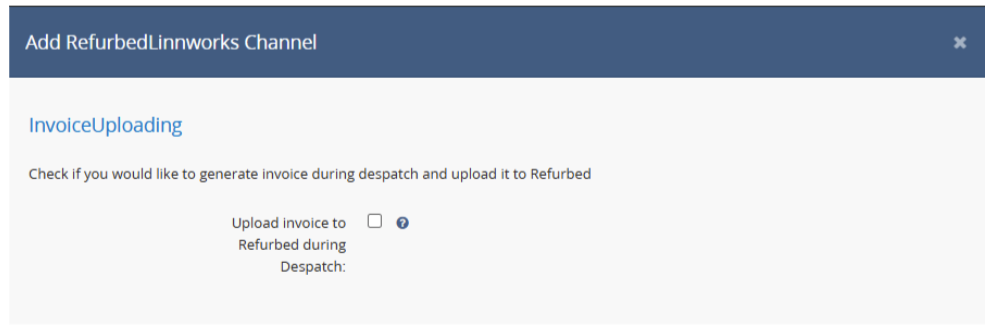 Invoice Uploading: Generate Invoice checkbox
If you enabled invoice generation, select Invoice Templates:
| Setting | Description | |
|---|---|---|
| Invoice template name (EU) | Select the Linnworks invoice template used for EU orders. The list is populated from your Linnworks account templates. | Optional |
| Invoice template name (Non-EU) | Select the Linnworks invoice template used for Non-EU orders (currently: Switzerland / CH). The PDF is uploaded as a commercial invoice with a unique invoice number. Leave blank if you do not ship to non-EU countries. | Optional |
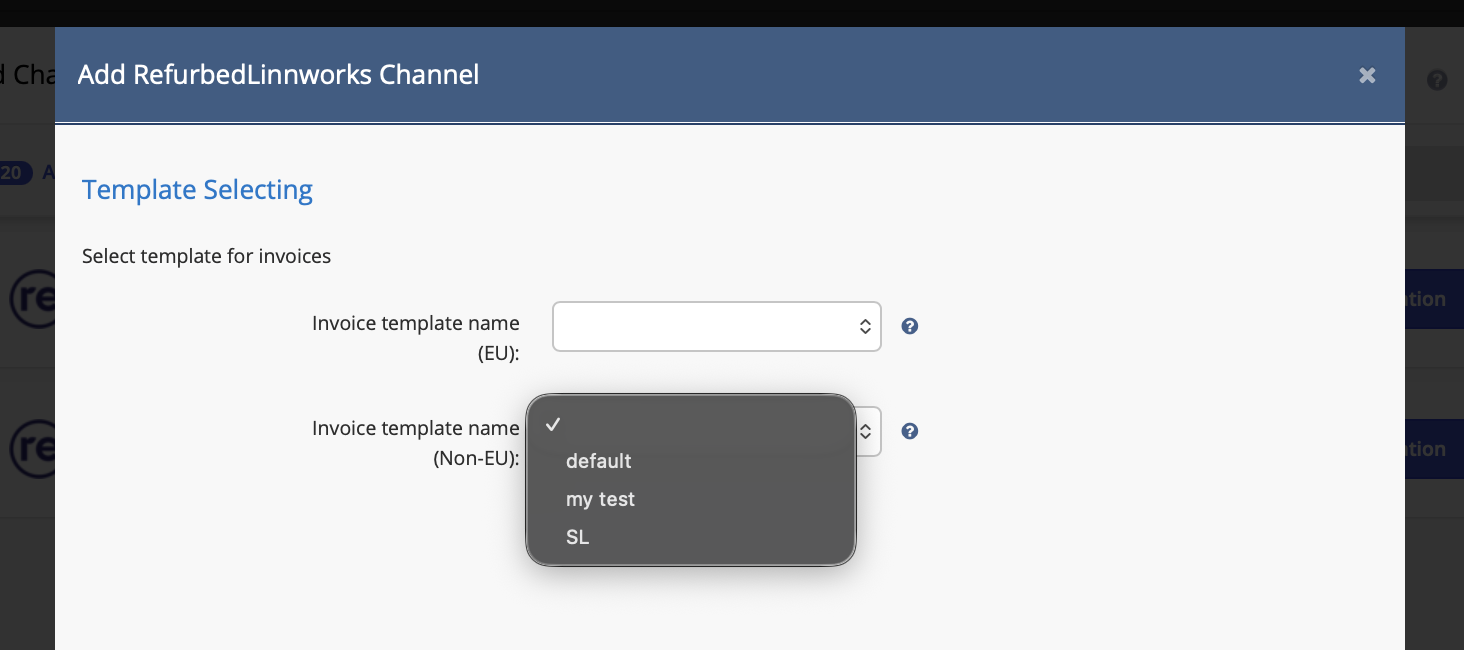 Invoice Template selection — EU and Non-EU template dropdowns
Configure Price Updates settings:
| Setting | Description | |
|---|---|---|
| Reference Currency | Currency code used for the reference price sent to Refurbed during price updates. Defaults to EUR. Select a different currency only if your Refurbed account operates in a non-EUR currency. |
Optional |
| Send Min Price Updates | When enabled, minimum reference prices are also updated during price change operations. Requires the refurbed_Minprice extended property on stock items in Linnworks. |
Optional |
| Send Market Price Updates | When enabled, regional/market-specific prices are updated during price change operations. Requires extended properties in the format {CC}_{CUR} (e.g. DE_EUR, AT_EUR) for market prices and {CC}_{CUR}_MIN for market minimum prices. |
Optional |
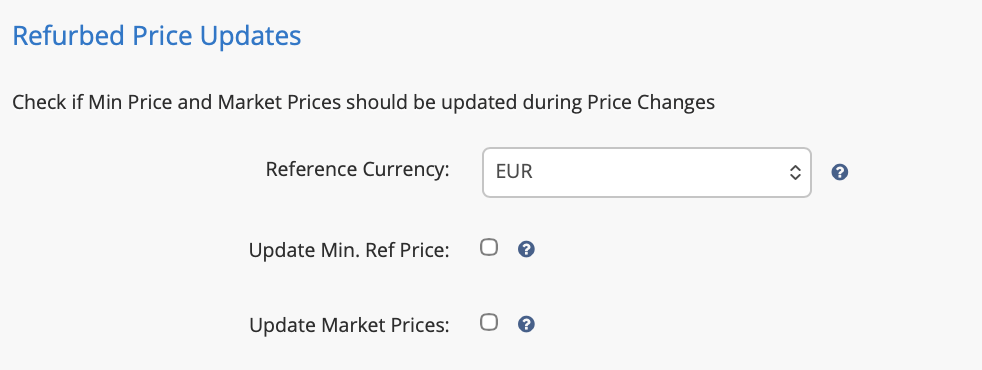 Price Updates settings
Configure Order Despatch settings:
| Setting | Description | |
|---|---|---|
| Upload Serial Number During Despatch | When enabled, item serial numbers are sent to Refurbed during order despatch. Serial numbers must be stored in the Linnworks order item's "Serial Number" additional info field. The Serial Number can be placed manually or automatically when the item is scanned in Linnworks. | Optional |
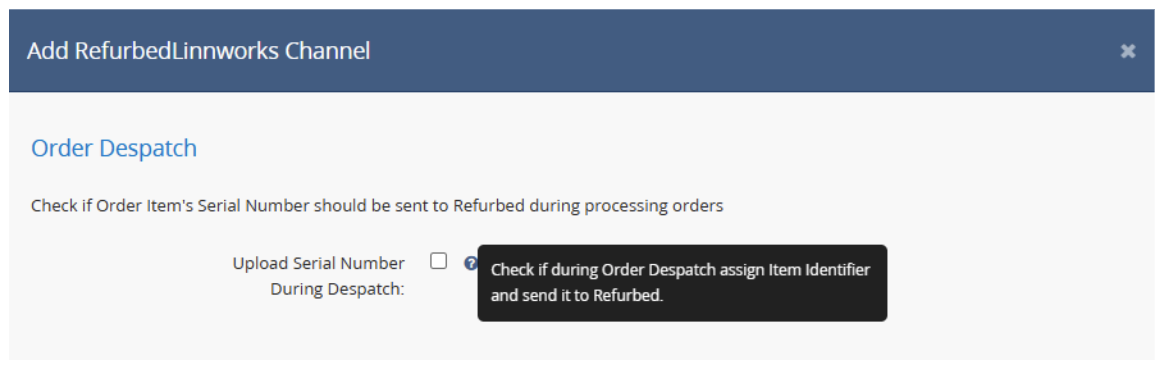 Order Despatch settings
Configure Returns settings:
| Setting | Description | |
|---|---|---|
| Enable Returns | When enabled, the integration will automatically create and update RMA (Return Merchandise Authorisation) bookings in Linnworks based on return requests received from Refurbed. A background worker checks for new returns every 15 minutes. | Optional |
| Auto-action Returns | When enabled, RMA bookings are automatically actioned (moved to refund) when the return status becomes DELIVERED on Refurbed. A refund record is also automatically created in Linnworks. | Optional |
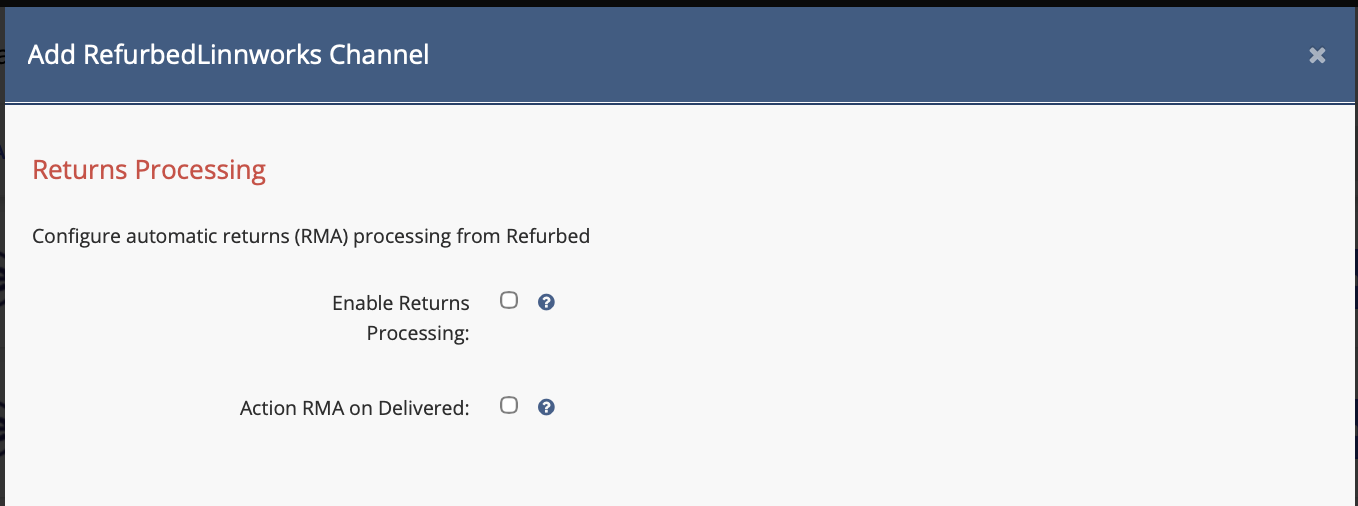 Returns settings: Enable Returns, Auto-action Returns
🗂️ Inventory Mapping
Once the integration has been added to your account, you can create inventory linking. The integration supports automatic product list download from Refurbed for linking.
The integration supports two options for linking your Linnworks inventory items to Refurbed offers:
Option 1 — Mapping page in Linnworks (recommended)
The integration automatically downloads your active Refurbed offers and makes them available on the Mapping page inside the channel integration settings in Linnworks. You can search for offers by SKU or name and link them directly to your Linnworks stock items — no CSV file required.
- Open Settings → Channel Integration and click the pen icon for the Refurbed integration.
- Navigate to the Mapping tab.
- When you open the Mapping tab for the first time, Linnworks needs to download all your offers from Refurbed. Depending on the number of offers, this may take some time. You can track the progress in the sync status field at the top of the page.
- Once the sync is complete, find the Refurbed offer you want to link and select the matching Linnworks stock item.
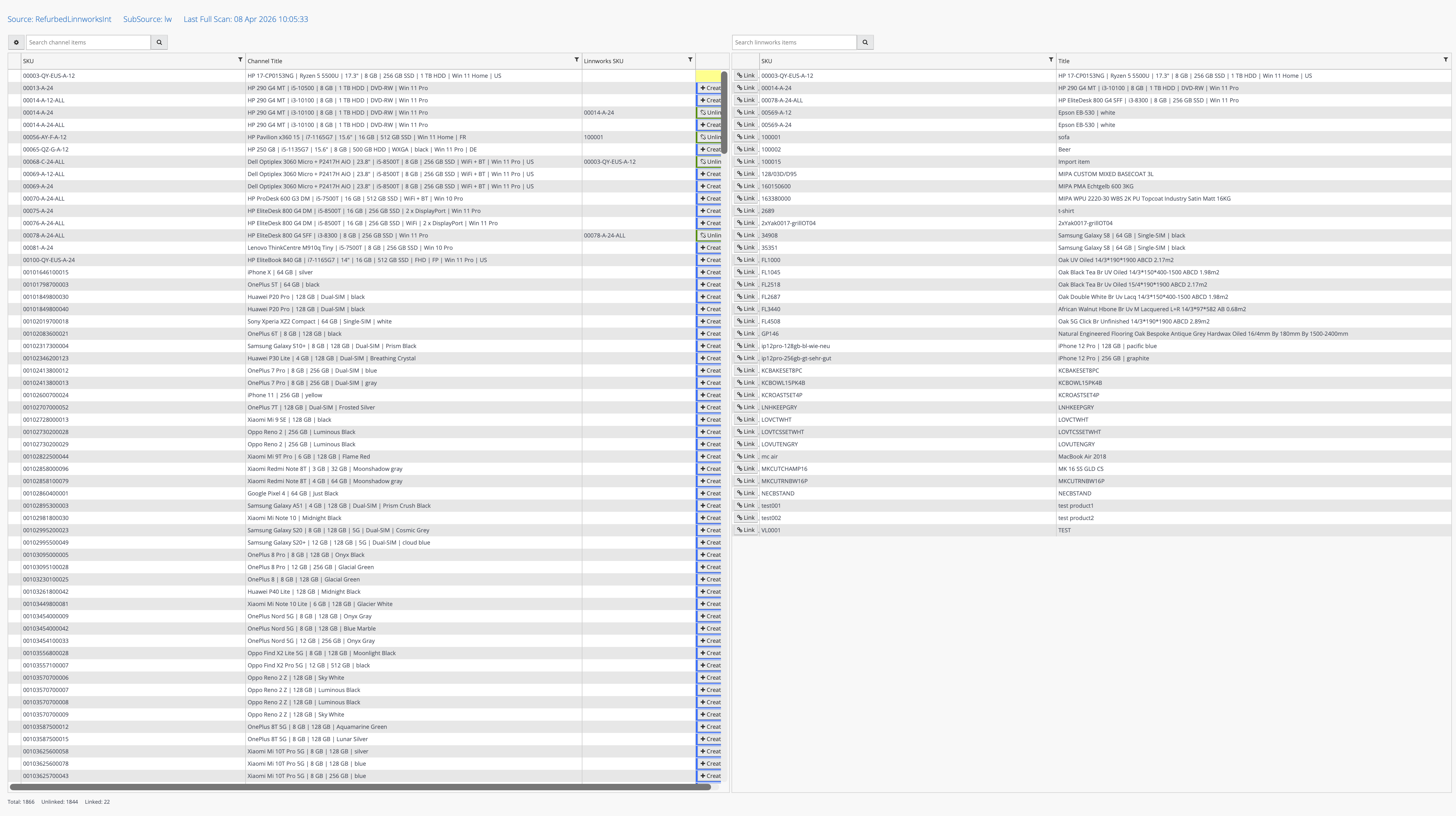 Mapping tab — overview (offers listed and ready to be linked to Linnworks stock items)
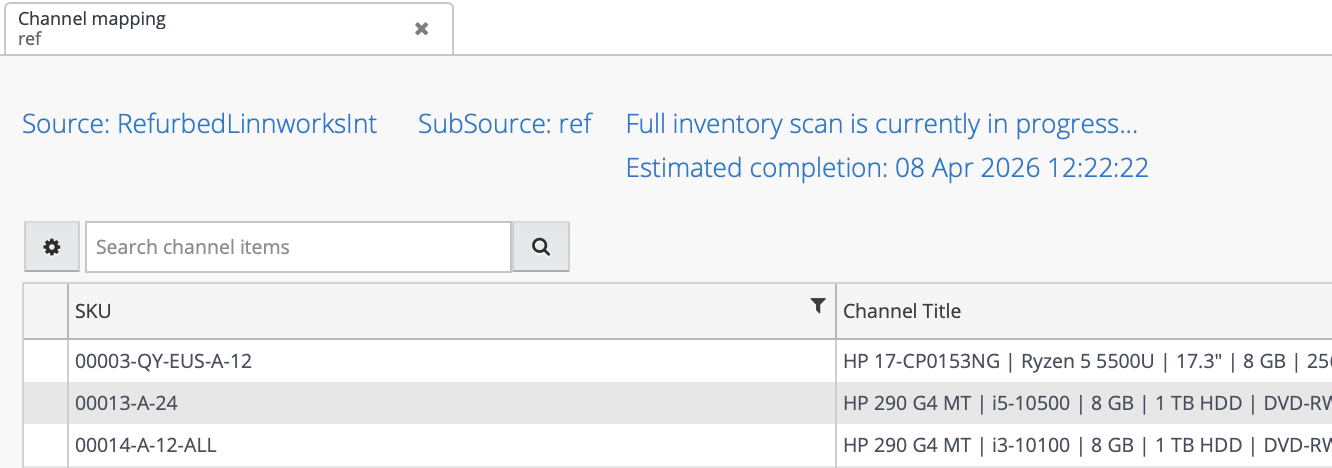 Mapping tab — sync in progress (offers are being downloaded from Refurbed)
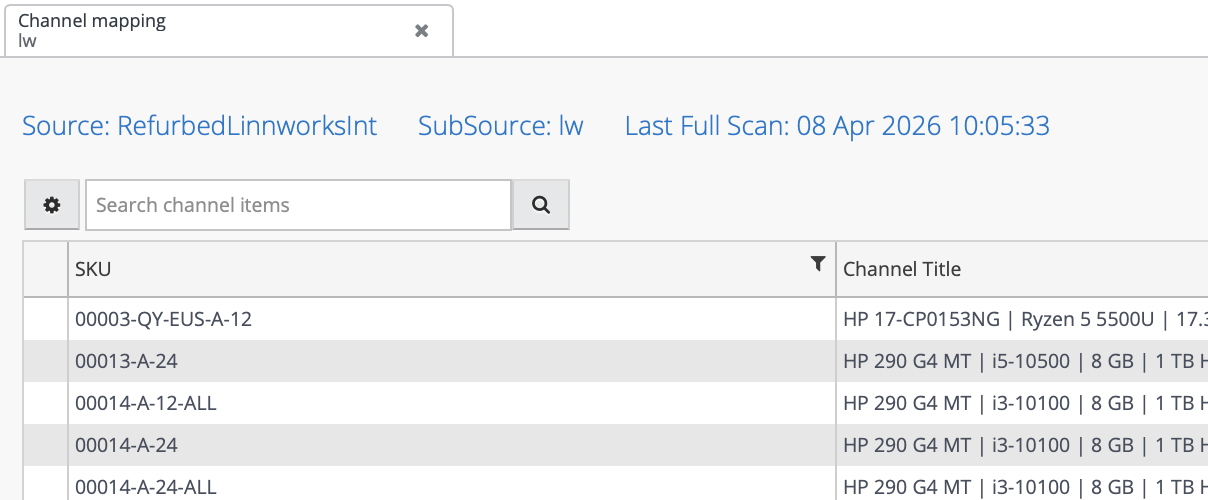 Mapping tab — sync complete, all offers available for linking
Option 2 — CSV Import
You can also create inventory links in bulk by uploading a CSV file using the standard Linnworks stock item linking import. Download the template below and fill in the required columns:
| Column | Description | Example |
|---|---|---|
| SKU | Your Linnworks SKU | LinnworksSku1 |
| Linked SKU Custom Label | The SKU of the product on Refurbed | RefurbedSku1 |
| Source | Integration source name — must be exactly RefurbedIntegration | RefurbedIntegration |
| SubSource | The Account Name you entered when adding the integration (e.g. refurbed, Refurbed DE, etc.) | refurbed |
| Channel Refence Id | Channel reference identifier | RefurbedSku1 |
 CSV template file
🔗 Shipping Mapping
Shipping mapping uses Refurbed Shipping Profiles. The available shipping profiles are automatically fetched from your Refurbed account.
💳 Payment Mapping
The integration supports a single payment method:
| Tag | Friendly Name |
|---|---|
CreditCard | Credit Card |
All Refurbed orders are automatically mapped to Credit Card as the payment method in Linnworks.
⚙️ How to Configure Channel Integration
Once the channel is added, click on the pen icon (✏️) in the channel integration screen for the required Refurbed integration.
 Channel integration list with pen (edit) icon highlighted
👤 Account
- Enabled — Tick to allow communication between Linnworks and Refurbed. When unticked, no information is sent to or received from the channel.
- Test — Used to confirm the supplied API token works correctly, allowing communication between Refurbed and Linnworks.
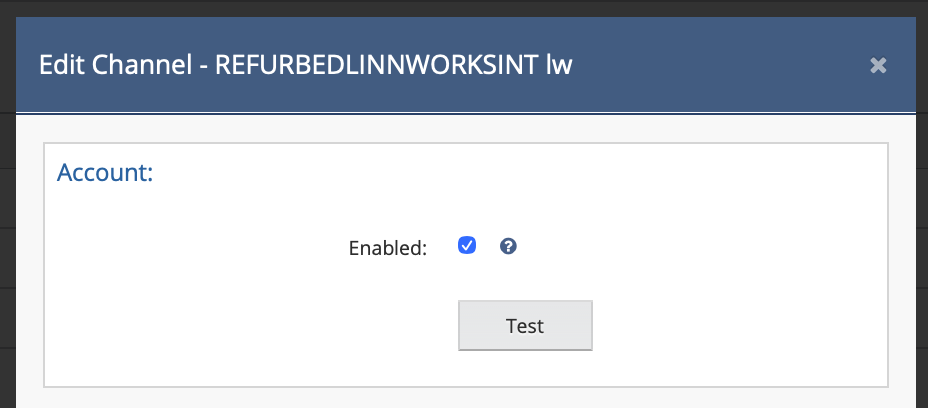 Account tab: Enabled checkbox and Test button
📋 Order
- Despatch Notes — When enabled, Linnworks will send order items' state to SHIPPED on Refurbed once the order is processed. Tracking numbers and courier information are included. If the shipping carrier name does not exist in Refurbed, Linnworks will return the error: "Cannot find related Courier Slug for {Shipper Vendor name}." You can change your service name in Linnworks to match one of the AfterShip services via Integration → Postal Services. See Courier Mapping for Despatch for full details on how courier slugs and tracking URLs are resolved.
- Cancellation Notes — When enabled, cancelling an order in Linnworks will send the items' state to CANCELLED on Refurbed. Partial cancellations are supported — to partially cancel an order, split the order in Linnworks, then cancel the split order containing the items that should be closed.
- Refund Notes — When enabled, refunding an order item in Linnworks will process the refund on Refurbed. The refund amount is calculated considering the exchange rate between presentment and settlement currencies.
- Order sync date — The date and time when Linnworks last synchronized orders with Refurbed.
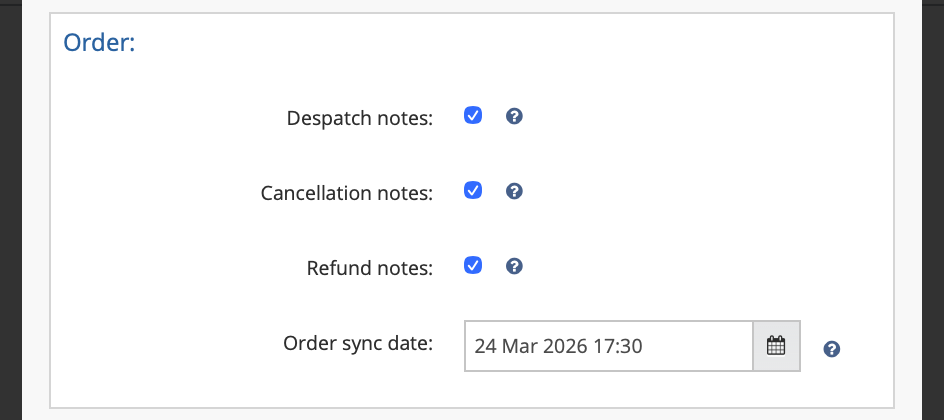 Order tab: Despatch Notes, Cancellation Notes, Refund Notes, Order sync date
📦 Inventory
- Update Inventory — When enabled, Linnworks will send stock quantity updates to Refurbed offers.
- Max Listed — Specifies the maximum level of available stock that is submitted to the channel.
- Stock Percentage — Specifies the percentage of available stock that is submitted to the channel.
- End When — Enables to force the listing to end when the stock level gets to the specified amount as opposed to the default value of zero.
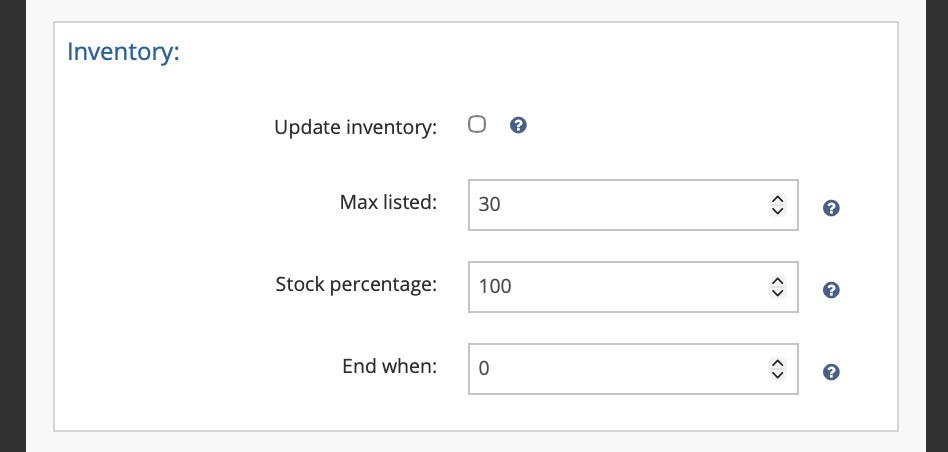 Inventory tab: Update Inventory, Max Listed, Stock Percentage, End When
💲 Price Change
- Update Prices — When enabled, Linnworks will send price updates to Refurbed offers. The reference price is sent in the currency configured under Reference Currency in settings (defaults to EUR). Items must be linked for the channel and contain a Channel Reference ID that matches the Linnworks SKU.
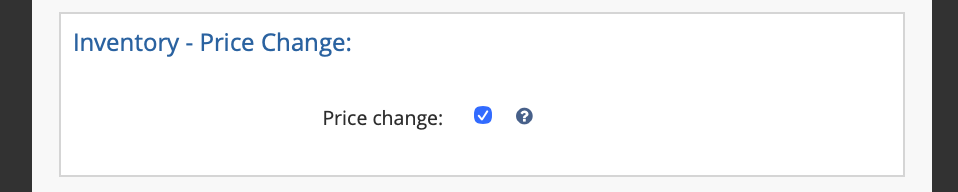 Price Change tab: Update Prices checkbox
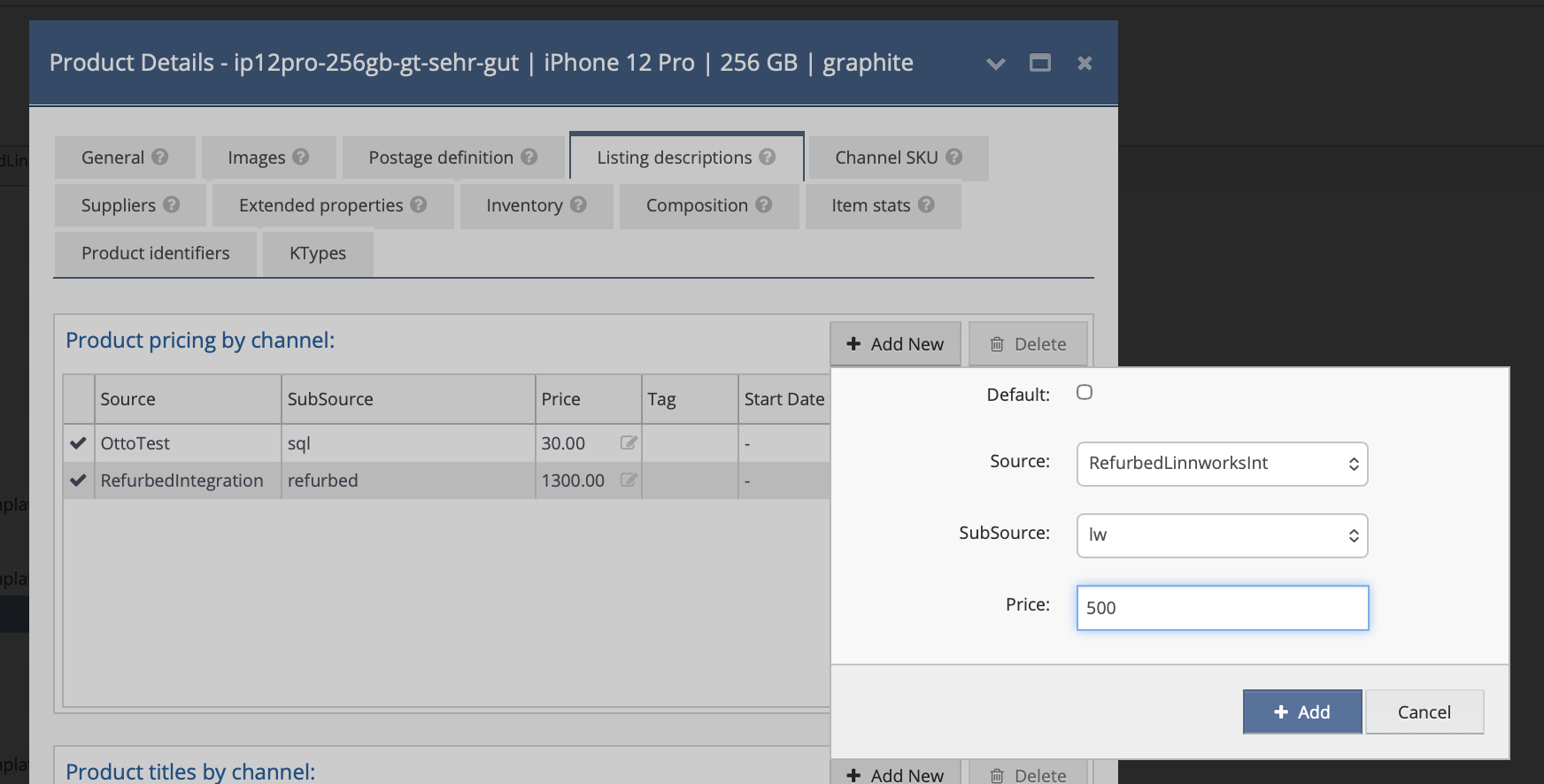 Product Details → Listing Descriptions → Product Pricing by Channel — price set for Refurbed
⚙️ Settings
- API Token — Your Refurbed API access token.
- Use Presentment Currency — Use the customer-facing currency instead of the settlement currency for orders.
- Merge Address Fields — Combine street name and house number into a single Address 1 field.
- Generate Invoice — Generate and upload invoice PDF to Refurbed during despatch.
- Invoice template name (EU) — The Linnworks template used to generate invoices for EU orders.
- Invoice template name (Non-EU) — The Linnworks template used to generate commercial invoices for Non-EU orders, e.g. Switzerland. Leave blank if not applicable. See Commercial Invoice Numbers for details on the invoice number format.
- Reference Currency — Currency code used for the reference price during price updates. Defaults to
EUR. Change only if your Refurbed account operates in a different currency. - Send Min Price Updates — Update minimum reference prices during price changes (requires
refurbed_Minpriceextended property). - Send Market Price Updates — Update regional/market prices during price changes (requires
{CC}_{CUR}extended properties). - Upload Serial Number During Despatch — Send item serial numbers to Refurbed during despatch.
- Enable Returns — Enable automatic RMA booking creation from Refurbed returns.
- Auto-action Returns — Automatically action RMA bookings and create refunds when the return is DELIVERED.
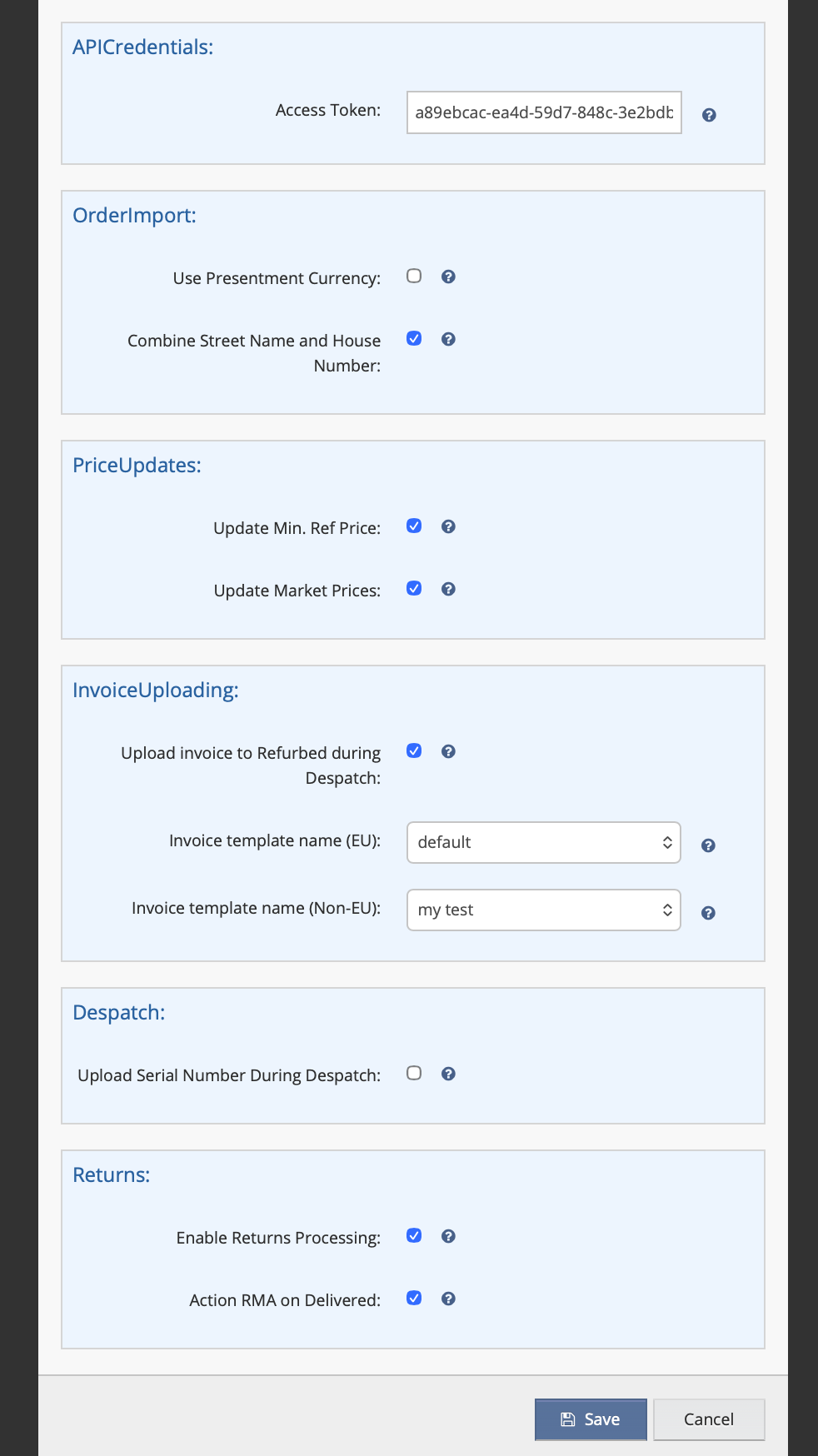 Settings tab: all configuration fields
📋 Listing Management
Create, update, and delete Refurbed offers directly from Linnworks using the Listings feature.
🖥️ Setting Up Listings for Refurbed
Follow these steps to configure listings for the Refurbed channel in Linnworks.
Step 1 — Create a Listing Configurator. Go to Listings in the Linnworks main menu. Create a new Configurator and select the Refurbed channel. When prompted, choose the SubSource that matches the configuration name you specified during the channel setup. The Configurator acts as a shared wrapper for all items (templates) listed through it.
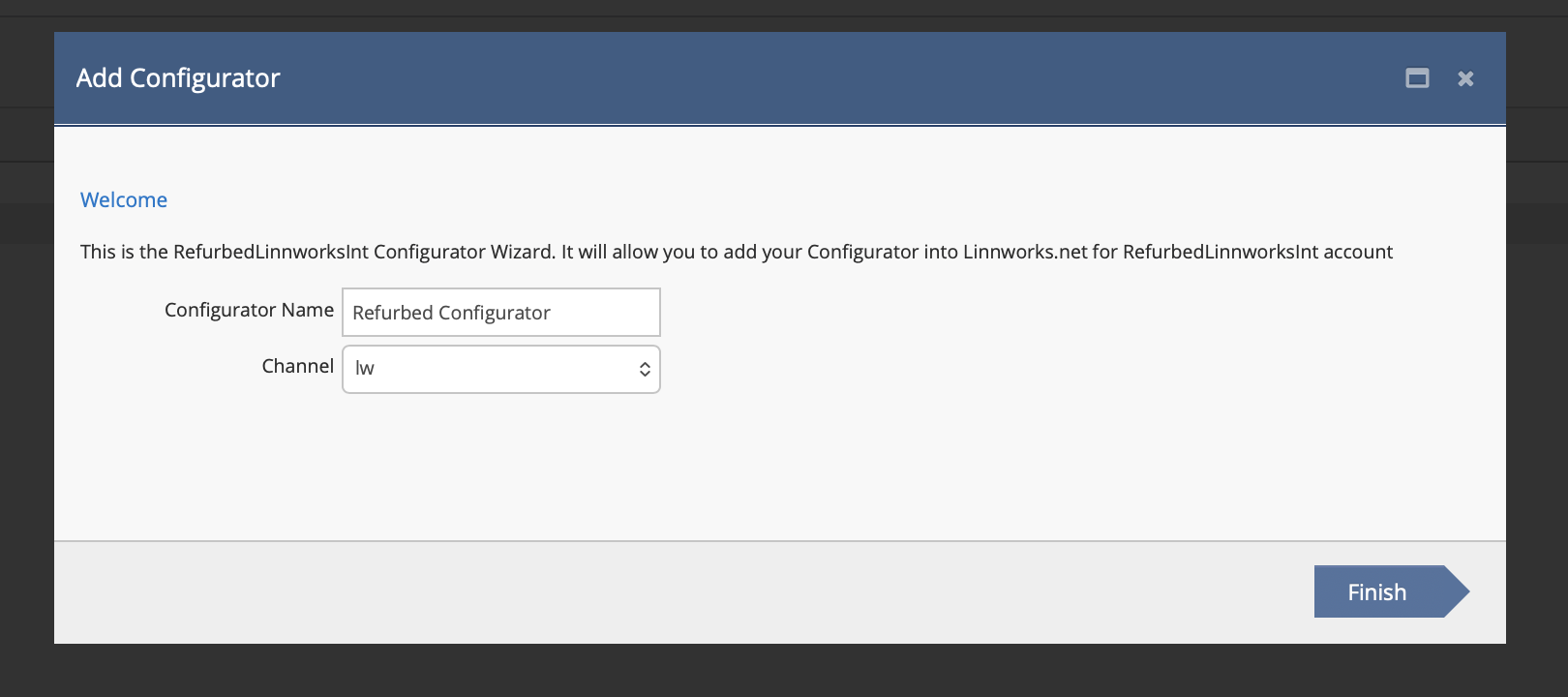 Creating a new Listing Configurator for Refurbed
Step 2 — Add Categories & Configure Attributes. Inside the Configurator, add one or more categories from the Refurbed catalogue. Categories are displayed in a hierarchical format: TYPE → Parent → Child (e.g. ELECTRONICS → Smartphones → Apple). The Configurator serves as a shared wrapper for all templates (items) inside it — categories and their attributes are configured at this level and apply to every item added later.
For each attribute you can choose where the value comes from: set a default value directly in the Configurator, or map it to an Extended Property in Linnworks so each item populates the value automatically from its own product data.
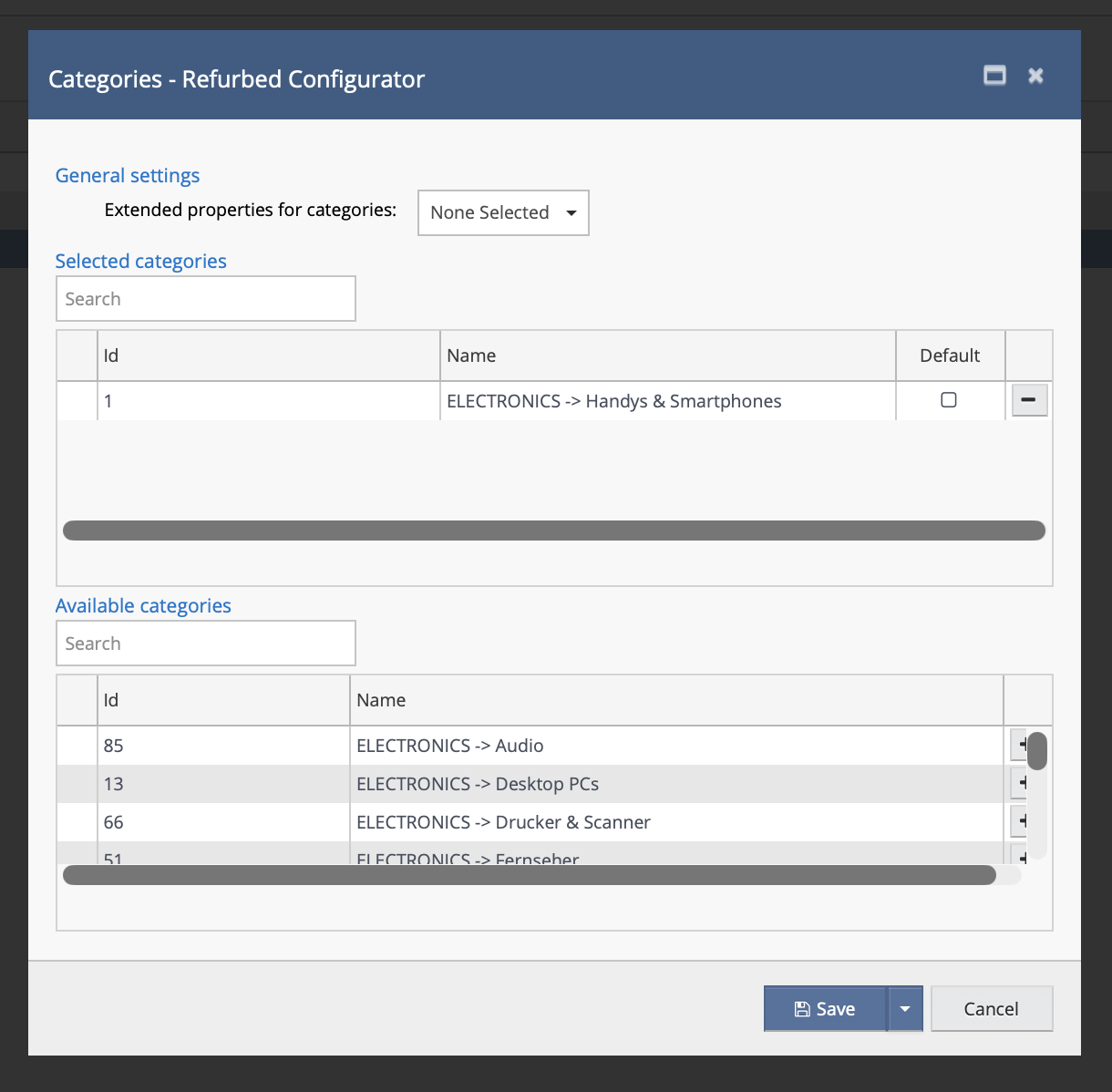 Selecting a category in the Listing Configurator
Step 3 — Review Attributes. After adding categories, attributes are loaded automatically: standard Refurbed attributes (Grading, Warranty, Taxation, etc.) plus category-specific attributes (e.g. storage capacity, colour, screen size). Set default values or map them to Extended Properties — these settings propagate to all templates (items) created under this Configurator.
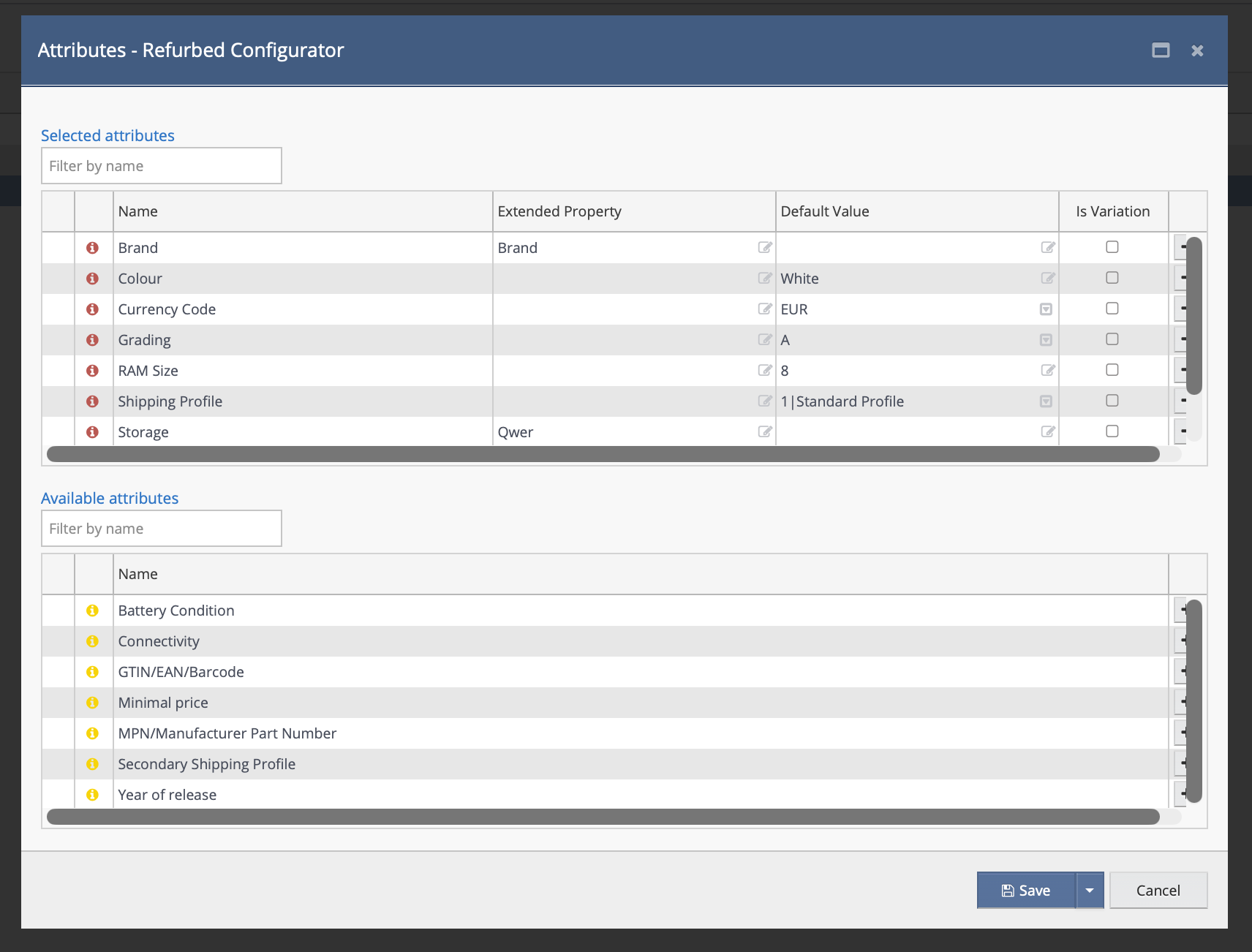 Attributes section — standard and category-specific attributes
Step 4 — Add Items (Templates). From the Inventory view, select the stock items you want to list and add them to the Configurator. Each item becomes a Listing Template in the Listings section. Inside each template, you can override attribute values, provide additional details (Title, Description, Price, Quantity), and assign a different category if needed.
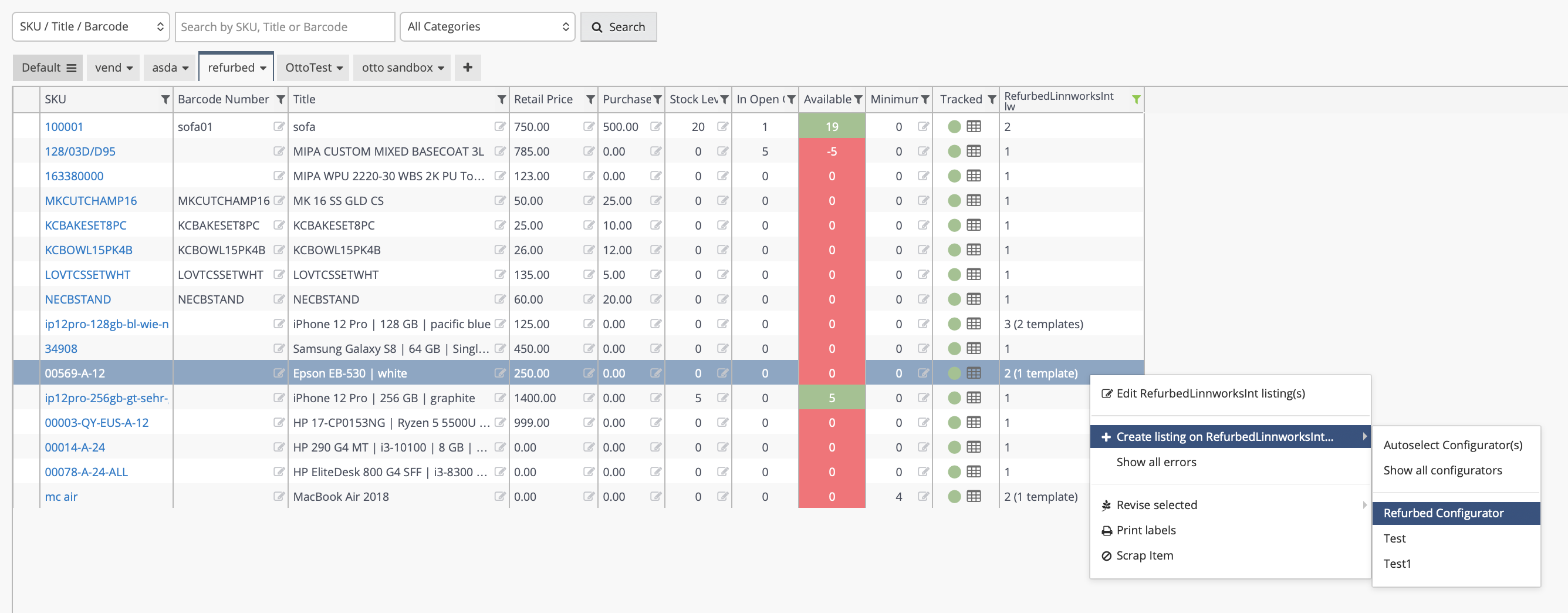 Adding items from Inventory to the Listing Configurator
Step 5 — Submit. Once the template is filled in, click Create to submit the listing. The item enters the processing queue and is sent to Refurbed.
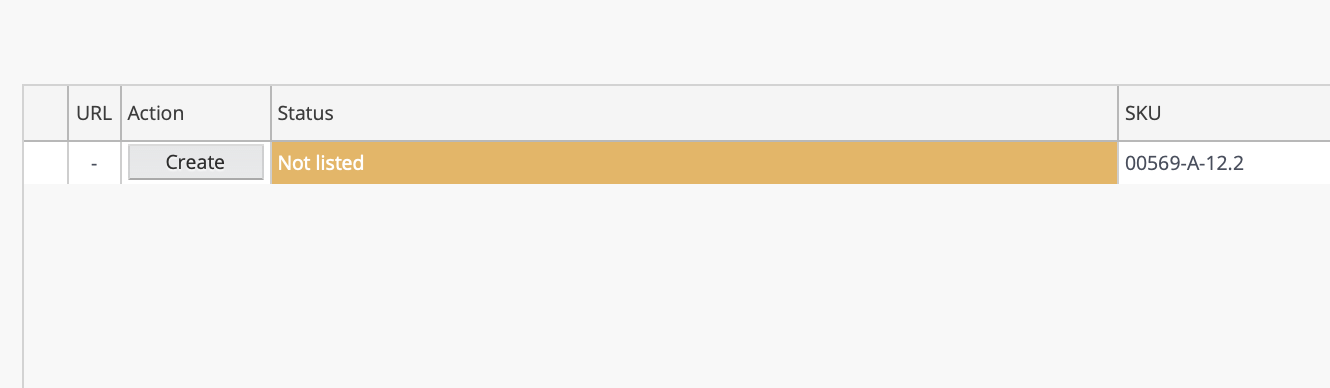 Listing template ready to submit
📂 Categories & Attributes
Refurbed product categories are organised in a tree structure with three root types: ELECTRONICS, SPORTS, and KIDS. When you select a category, the integration loads all relevant attributes for that category.
Standard Attributes (always present)
| Attribute | Options | |
|---|---|---|
| Grading | AA, A, B, C | Required |
| Warranty | M12, M18, M24, M30, M36 | Required |
| Taxation | GROSS, MARGINAL | Required |
| Currency Code | Dropdown — fetched from Refurbed (e.g. EUR, SEK, DKK) | Required |
| Shipping Profile | Dropdown — fetched from Refurbed, format: Name (ID) | Required |
| Battery Condition | EXCELLENT, GOOD, ACCEPTABLE | Optional |
| GTIN / EAN / Barcode | Free text — helps Refurbed match the exact product | Optional |
| MPN | Free text — Manufacturer Part Number | Optional |
| Minimal Price | Free text (numeric value) | Optional |
| Secondary Shipping Profile | Dropdown — fetched from Refurbed, format: Name (ID) | Optional |
Grading Values Explained
The Grading attribute describes the product condition. These are the values shown in the Linnworks dropdown and their meaning on the Refurbed marketplace:
| Value in Linnworks | Refurbed API | Meaning |
|---|---|---|
AA | AA | Brand new, unused, original packaging |
A | A | Like new — minimal or no cosmetic marks, fully functional |
B | B | Fully functional, visible signs of previous use |
C | C | Functional, noticeable cosmetic wear |
Warranty Values Explained
| Value in Linnworks | Meaning |
|---|---|
M12 | 12 months warranty |
M18 | 18 months warranty |
M24 | 24 months warranty |
M30 | 30 months warranty |
M36 | 36 months warranty |
Taxation Values Explained
| Value in Linnworks | Meaning |
|---|---|
GROSS | Regular (gross) taxation — standard VAT applies |
MARGINAL | Marginal taxation (differential taxation / VAT margin scheme) |
Category-Specific Attributes
Category-specific attributes (e.g. storage capacity, colour, screen size) are loaded automatically when you select a category. Some are required, some optional — each may offer predefined values to choose from. These attributes can be mapped to Extended Properties in Linnworks so they are populated automatically for each item.
📊 Listing Statuses
Linnworks UI Statuses
In the Linnworks Listings view, each template shows one of the following statuses:
| Status | Meaning |
|---|---|
| Not Listed | Template is ready to be submitted. Click to create the listing on Refurbed. |
| Creating | The listing is being processed (submitted to the queue, awaiting Refurbed response). |
| Listed | The listing was successfully created on Refurbed. |
| Error | The listing failed. Check the error details — fix the attributes and resubmit. |
Refurbed Resolution States
After a successful submission, Refurbed runs its own product matching process. The integration sends an Instance Descriptor (product name + category + specification attributes) and Refurbed attempts to match it to a catalogue entry:
| State | Description |
|---|---|
| OK | Product matched immediately. Offer is created and active on the marketplace. |
| SUBMITTED | In the matching queue. Refurbed is attempting to match automatically. |
| PENDING_REVIEW | Automatic matching failed. Waiting for manual review by Refurbed's listing team. |
| REJECTED | Rejected — missing data, invalid configuration, or disallowed property. Fix and resubmit. |
➕ Create / Update / Delete
Create
Fill in all required fields (Title, Price, Quantity, Category, Attributes) and submit. The offer enters Refurbed's matching process.
Update
Modify offer attributes, stock, or pricing for an existing listing. Identified by SKU.
Delete
Removes the offer from Refurbed. Identified by SKU.
📌 Important Notes
📦 Order Splitting by Shipping Profile
Refurbed orders may contain items with different shipping profiles. The integration automatically splits such orders into separate Linnworks orders — one per shipping profile.
How it works
- When an order is downloaded from Refurbed, the integration checks whether the order items have different shipping profile IDs.
- If they do, the order is split into multiple Linnworks orders.
- Each Linnworks order reference is formatted as
{RefurbedOrderId}_{SplitIndex}— e.g.12345_0,12345_1. - The PostalServiceName on each Linnworks order is set to the shipping profile ID.
{RefurbedOrderId}_0.🧾 Invoice Upload
When Generate Invoice is enabled, the integration generates a PDF invoice from the selected Linnworks template and uploads it to Refurbed during order despatch.
Key details
- The invoice PDF is generated using the Linnworks API and the template selected during setup.
- Maximum invoice file size: 2 MB. If the generated PDF exceeds this limit, the upload will fail.
- If an invoice has already been uploaded for the order, it will not be re-uploaded.
- Invoice upload is not supported for merged orders (orders with
MERGEDreference). - If the invoice upload fails during despatch, the despatch itself will still proceed — the failed invoice will be logged and can be retried later.
- Split orders: If an order was split during order download, the invoice will be generated when the last part of the order is processed. In this case, a separate invoice is generated for each split order, and then they are combined into one PDF and sent to Refurbed.
🌍 Non-EU Orders — Commercial Invoices
For orders shipped to non-EU countries (currently Switzerland / CH), the integration uses a dedicated upload flow. The PDF is treated as a commercial invoice and is submitted together with a unique invoice number.
Routing logic
- During despatch, the integration checks the shipping country of the Refurbed order.
- If the country is non-EU (currently: Switzerland), the Non-EU template is used and the PDF is sent as a commercial invoice.
- For all other countries, the EU template is used and the PDF is sent as a standard invoice.
- Each route is enabled independently — you can configure only the EU template, only the Non-EU template, or both.
Setup wizard — Invoice template name (EU) and Invoice template name (Non-EU) fields
🔢 Commercial Invoice Numbers
When uploading a commercial invoice for a non-EU order, the integration generates a unique commercial invoice number and includes it in the upload request sent to Refurbed.
Default invoice number format
The invoice number is built from two identifiers:
| Part | Source | Example |
|---|---|---|
| NumOrderId | Numeric Linnworks order ID | 12345 |
| RefurbedOrderId | Refurbed order reference (External Reference) | ABC123456 |
| Result | INV-{NumOrderId}-{RefurbedOrderId} | INV-12345-ABC123456 |
How the invoice number is stored
After the commercial invoice is successfully sent to Refurbed, the integration automatically saves the invoice number as a Linnworks Extended Property on the order:
| Extended Property | Value | Type |
|---|---|---|
COMMERCIAL_INVOICE_NUMBER |
The invoice number used, e.g. INV-12345-ABC123456 |
Attribute |
Customising the invoice number
You have full control over the invoice number for any order. To use a custom value, simply set the COMMERCIAL_INVOICE_NUMBER extended property on the Linnworks order before despatch:
- Open the order in Linnworks.
- Go to Extended Properties and add (or edit) the property named
COMMERCIAL_INVOICE_NUMBER. - Enter your desired invoice number as the value.
- Despatch the order — the integration will use your value as the invoice number instead of generating one automatically.
COMMERCIAL_INVOICE_NUMBER property on the order in Linnworks.
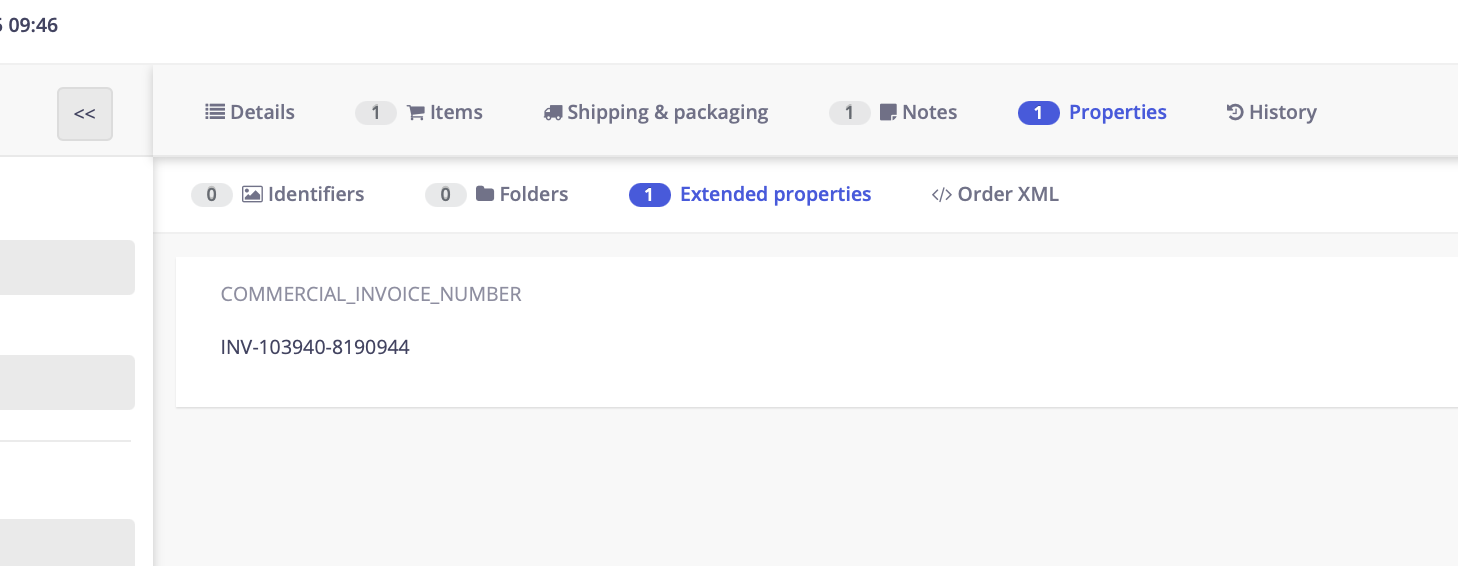 COMMERCIAL_INVOICE_NUMBER extended property on a Linnworks order — saved automatically after upload, or set manually before despatch to use a custom value
Displaying the invoice number in your Linnworks template
To include the commercial invoice number in the PDF generated by your Linnworks template, use the following expression:
Invoice Number: INV-[{nOrderId}]-[{ExternalReference}]
[{nOrderId}]— resolves to the numeric Linnworks order ID[{ExternalReference}]— resolves to the Refurbed order reference
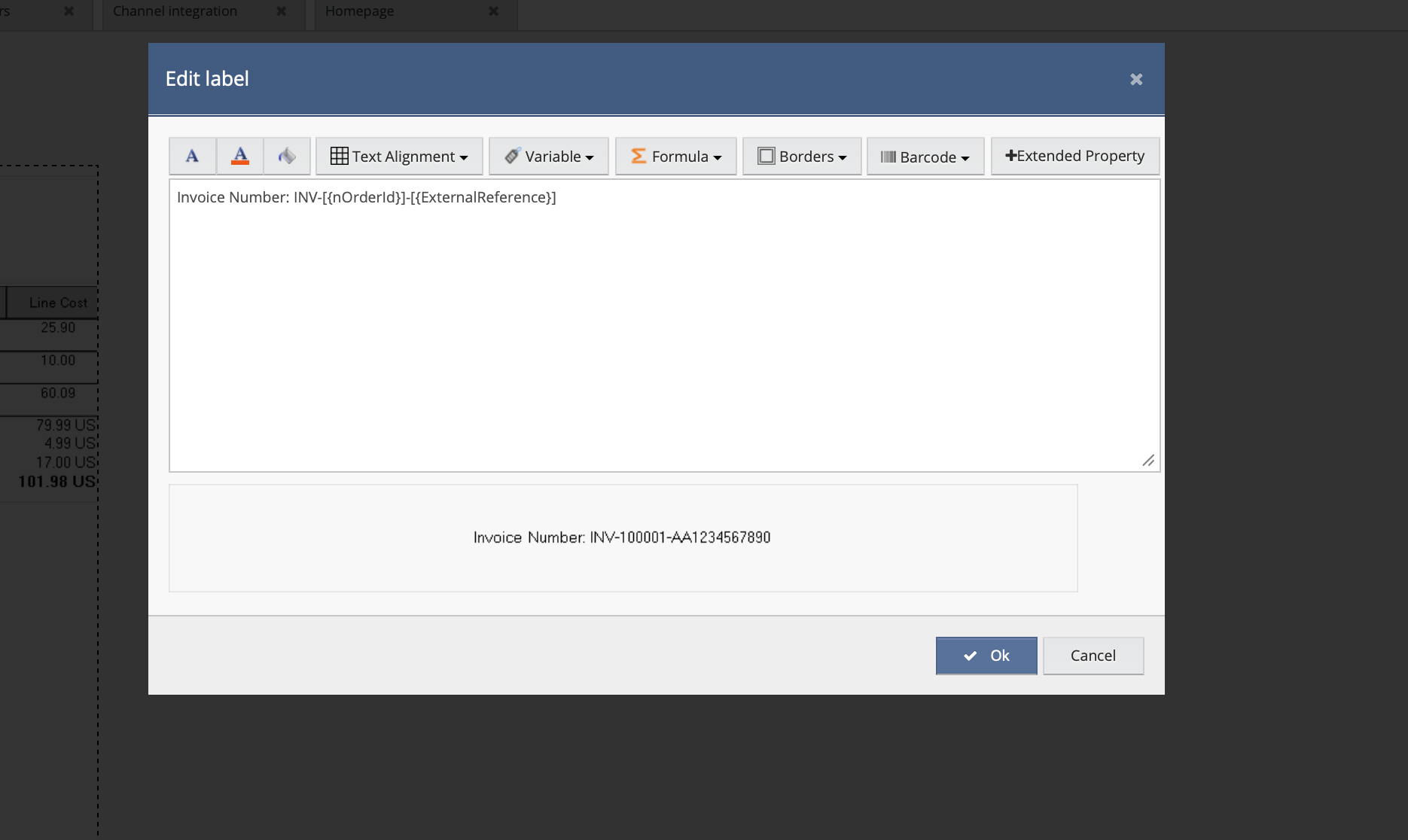 Linnworks invoice template — Invoice Number field using:
 Invoice Number: INV-[{nOrderId}]-[{ExternalReference}]
🔄 Returns Processing
When Enable Returns is turned on, a background worker runs every 15 minutes to check for new and updated returns on Refurbed.
How returns work
- The worker fetches all active returns from Refurbed (excluding EXPIRED and CANCELLED returns).
- For each return, the worker finds the corresponding order in Linnworks (searching up to 20 split indices).
- If no RMA booking exists, a new one is created in Linnworks with the return details.
- If an RMA booking already exists, its status is updated to match the Refurbed return state.
- Refurbed return states are mapped to Linnworks PostSale statuses:
INITIATED,IN_TRANSIT→ OPENDELIVERED→ PROCESSED
- All status updates and return details are recorded in the Reason field of the RMA booking in Linnworks, providing a full picture of return state changes.
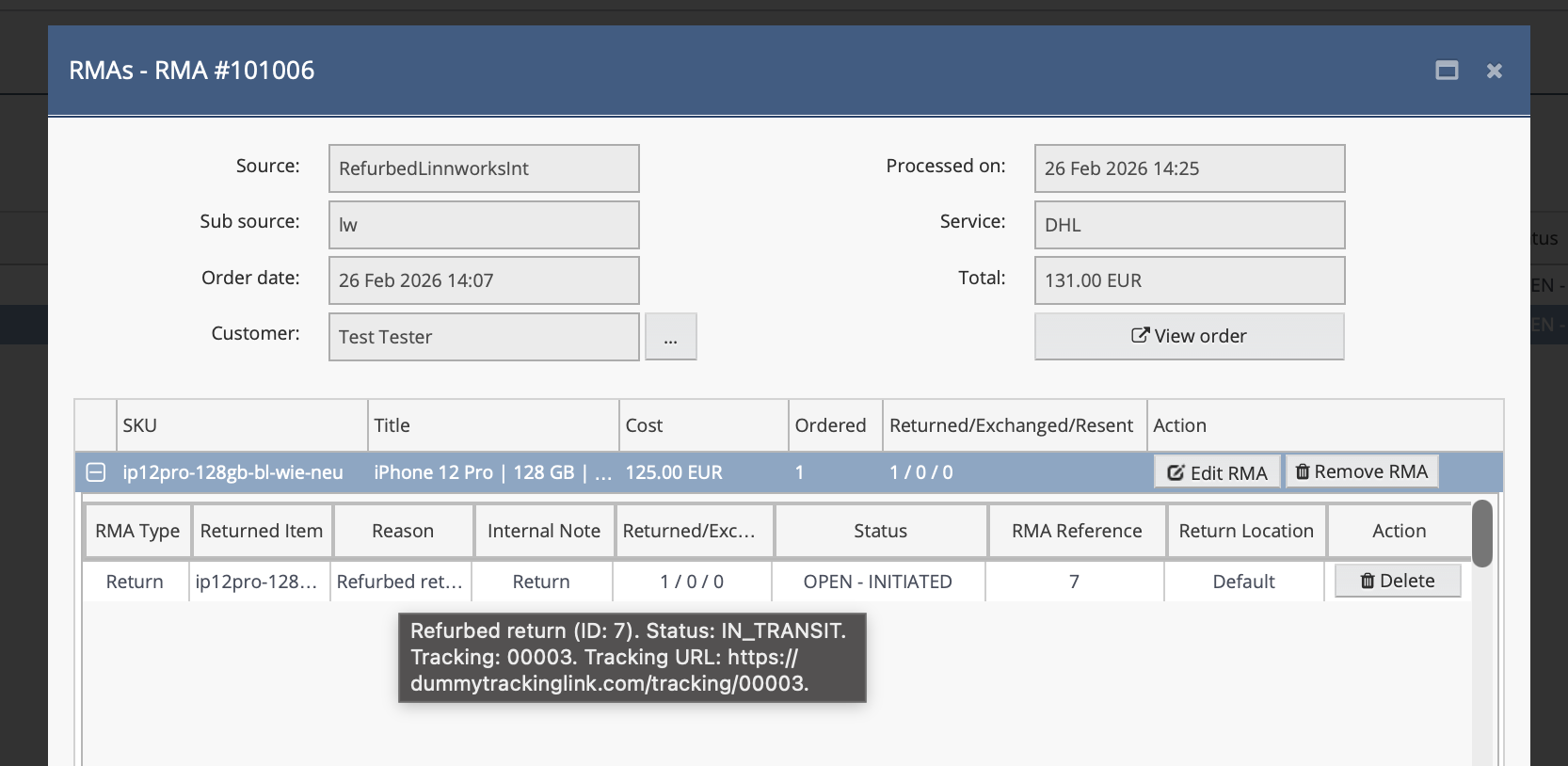 Linnworks RMA booking — return statuses displayed in the Reason field
💰 Price Extended Properties
To use advanced price update features, you need to set up specific extended properties on your Linnworks stock items.
Extended Property Reference
| Extended Property | Purpose | Example Value | Type | Required When |
|---|---|---|---|---|
Refurbed_MinPrice |
Minimum reference price for the offer (EUR) | 99.99 |
Attribute |
Send Min Price Updates is enabled |
{CC}_{CUR} |
Regional/market price for a specific country and currency | DE_EUR = 109.99 |
Attribute |
Send Market Price Updates is enabled |
{CC}_{CUR}_MIN |
Regional/market minimum price for a specific country and currency | DE_EUR_MIN = 89.99 |
Attribute |
Send Market Price Updates is enabled |
DE_EUR for Germany in Euros, AT_EUR for Austria in Euros, SE_SEK for Sweden in SEK, DK_DKK for Denmark in DKK. Market prices are updated in batches of 50.
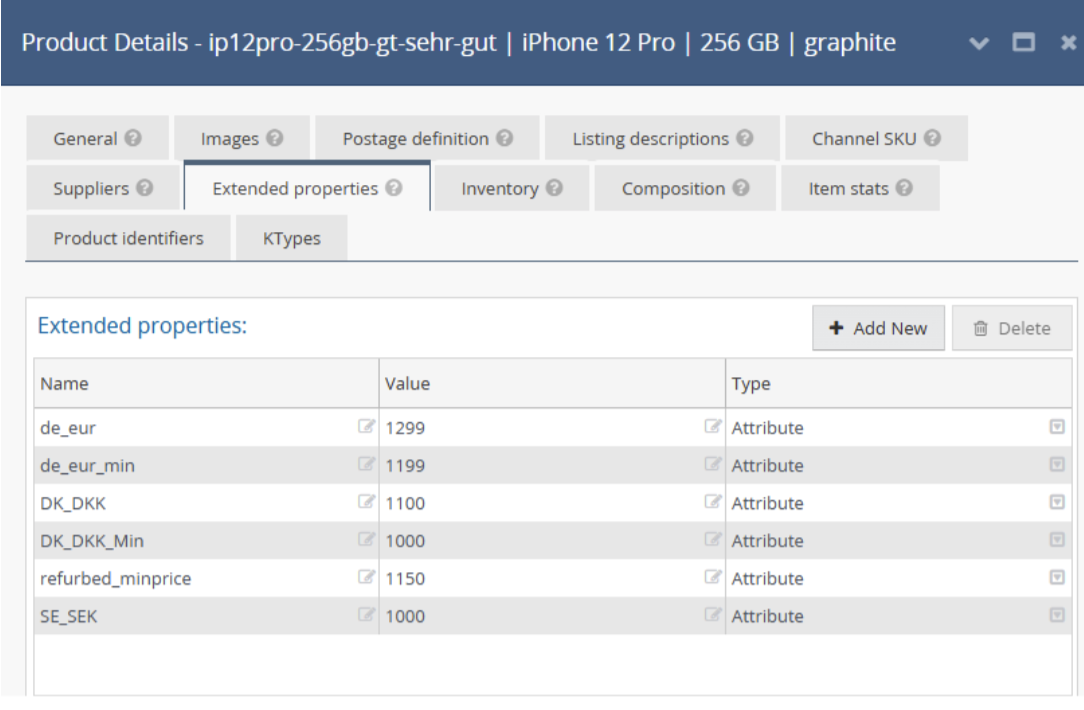 Extended Properties example on a Linnworks stock item
🚚 Courier Mapping for Despatch
When dispatching orders, the integration maps the Linnworks shipping service to a Refurbed courier slug using an internal courier mapping file.
How courier mapping works
- The integration uses the Linnworks order's Postal Service Name or Vendor to find a matching Refurbed courier slug.
- If a matching courier is found, the tracking number and courier slug are sent to Refurbed.
- If no matching courier is found and a tracking URL is available, the tracking URL is sent instead.
- If neither a courier match nor a tracking URL is available, the despatch may fail.
If your Linnworks shipping integration builds a Tracking URL and passes it during despatch, the integration will send only the tracking URL to Refurbed — no courier slug lookup is performed, and therefore you do not need to configure shipping service mapping.
However, if your shipping integration in Linnworks does not generate a tracking URL during despatch, the integration will attempt to resolve a Refurbed courier slug from the service name. In this case, shipping services must be mapped — make sure your Linnworks postal service names match the AfterShip courier slugs.
To check whether your shipping integration supports Tracking URL, refer to the official Linnworks comparison table: Compare Shipping Integrations — see the Tracking URL column in the table.
🔢 Serial Numbers
When Upload Serial Number During Despatch is enabled, the integration reads the identifier value from each order item's Additional Info → Serial Number field in Linnworks and sends it to Refurbed during despatch.
How it works
- Linnworks has a single identifier field per order item — Serial Number (visible in Additional Info). There is no separate IMEI field.
- Depending on the product, this field may contain either a serial number or an IMEI — both are stored in the same place.
- The value can be entered manually by the operator or automatically when the item is scanned during picking/despatch in Linnworks.
- The integration automatically determines the correct identifier type to send to Refurbed based on the value:
- IMEI — used when the value is numeric and 14–16 digits long (standard IMEI format).
- Serial Number — used for all other values (alphanumeric, different length, etc.).
- Once despatched, the identifier is submitted to Refurbed and displayed on the order item.
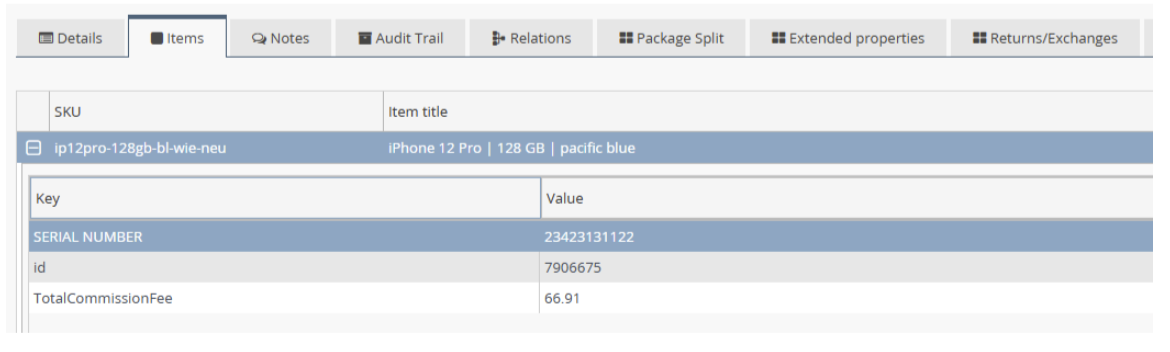 Serial Number in Linnworks order item Additional Info
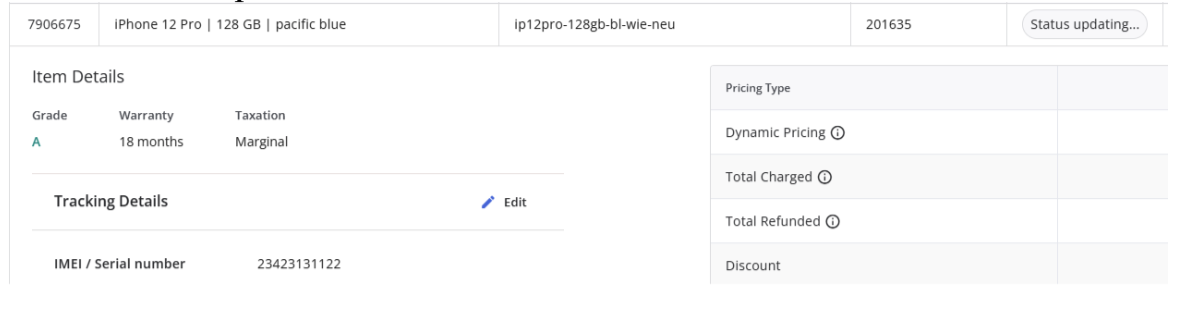 Serial Number displayed on Refurbed order item
📝 Additional Notes
Merged Orders
When orders are merged in Linnworks (reference contains MERGED), the following limitations apply:
- Invoice generation is not supported for merged orders.
- Serial numbers are not sent for merged orders.
- Refunds are not supported for merged orders.
VAT & Taxation
- Items with DIFFERENTIAL_TAXATION are marked with a "VAT Margin Scheme" note on the order in Linnworks.
- B2B orders (with company VATIN) include a note with the company's VATIN number.
- Tax handling depends on taxation type: items with differential taxation use tax-exclusive prices, while regular taxation items use tax-inclusive prices with channel tax rates.
Commission Fees
Refurbed commission fees are tracked per order item and stored as an order item option called TotalCommissionFee in Linnworks.
Refund Eligibility
The integration checks refund eligibility before processing. A refund will not be processed if:
- The item has already been fully refunded.
- The refund period has expired.
- The payment has not been captured yet.
- The refund status is unknown.